Turn a Photo into a Coloring Page

Make a black-and-white coloring image from a pet or everyday photo.

Upload one photo, then add instructions if you want simpler outlines or fewer background details. AI may change small details, so review the result before using it.
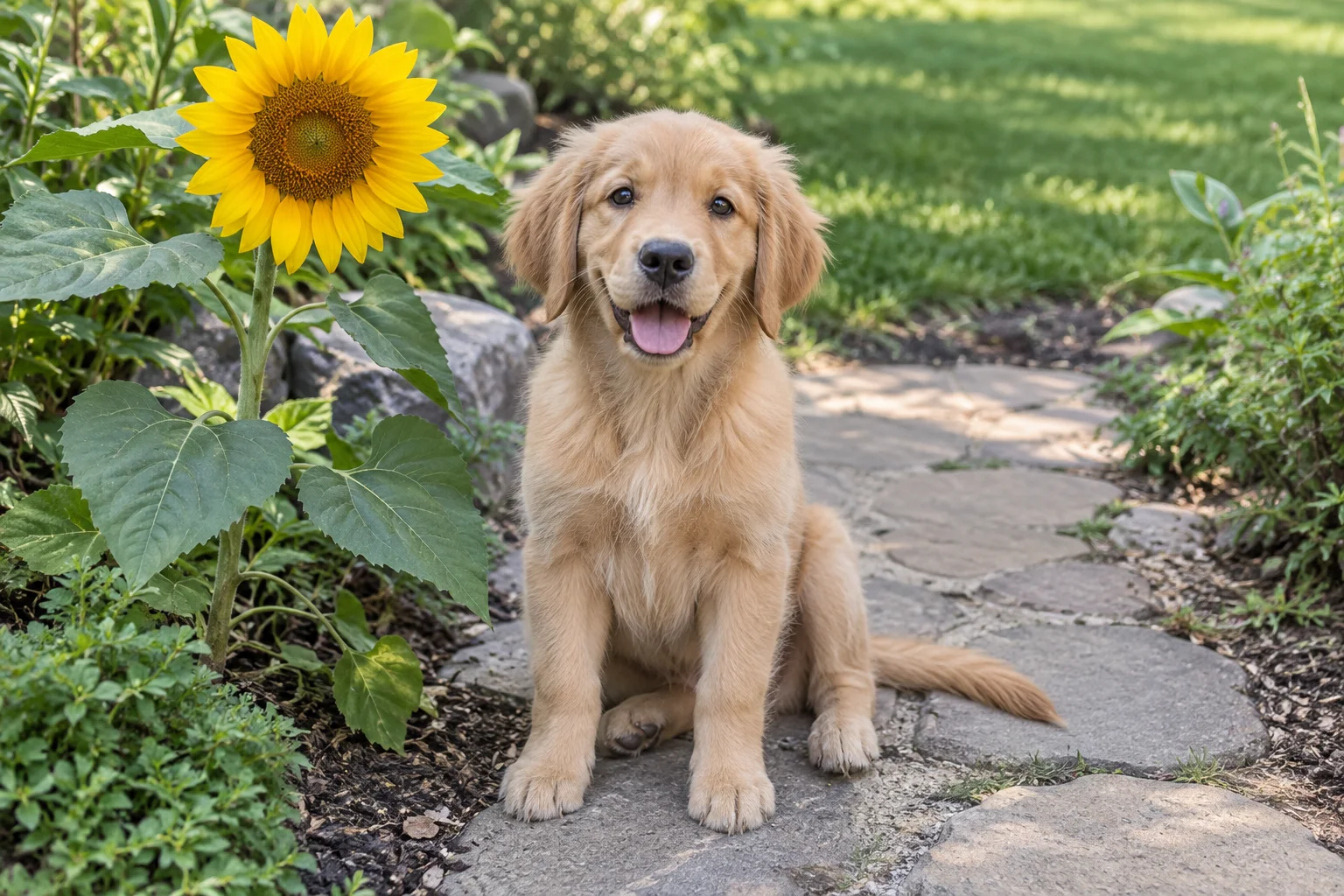
Original photo of a golden retriever puppy beside a sunflower
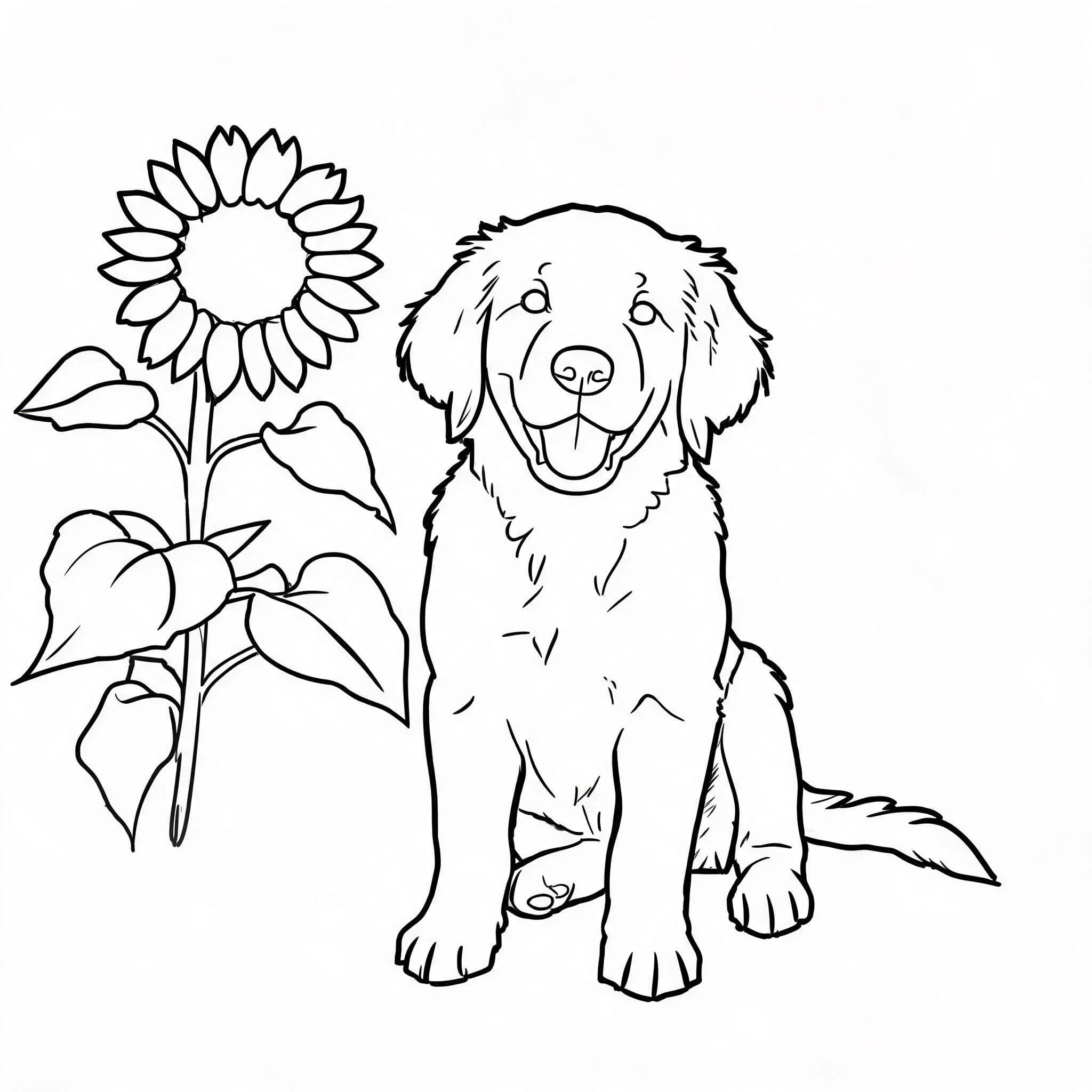
Black-and-white coloring image of the puppy and sunflower generated from the photo

Make a Coloring Image from Your Photo

Start with one photo. Ask for simpler shapes or a plainer background when needed.

0 / 300

Images generated by free users will have a watermark
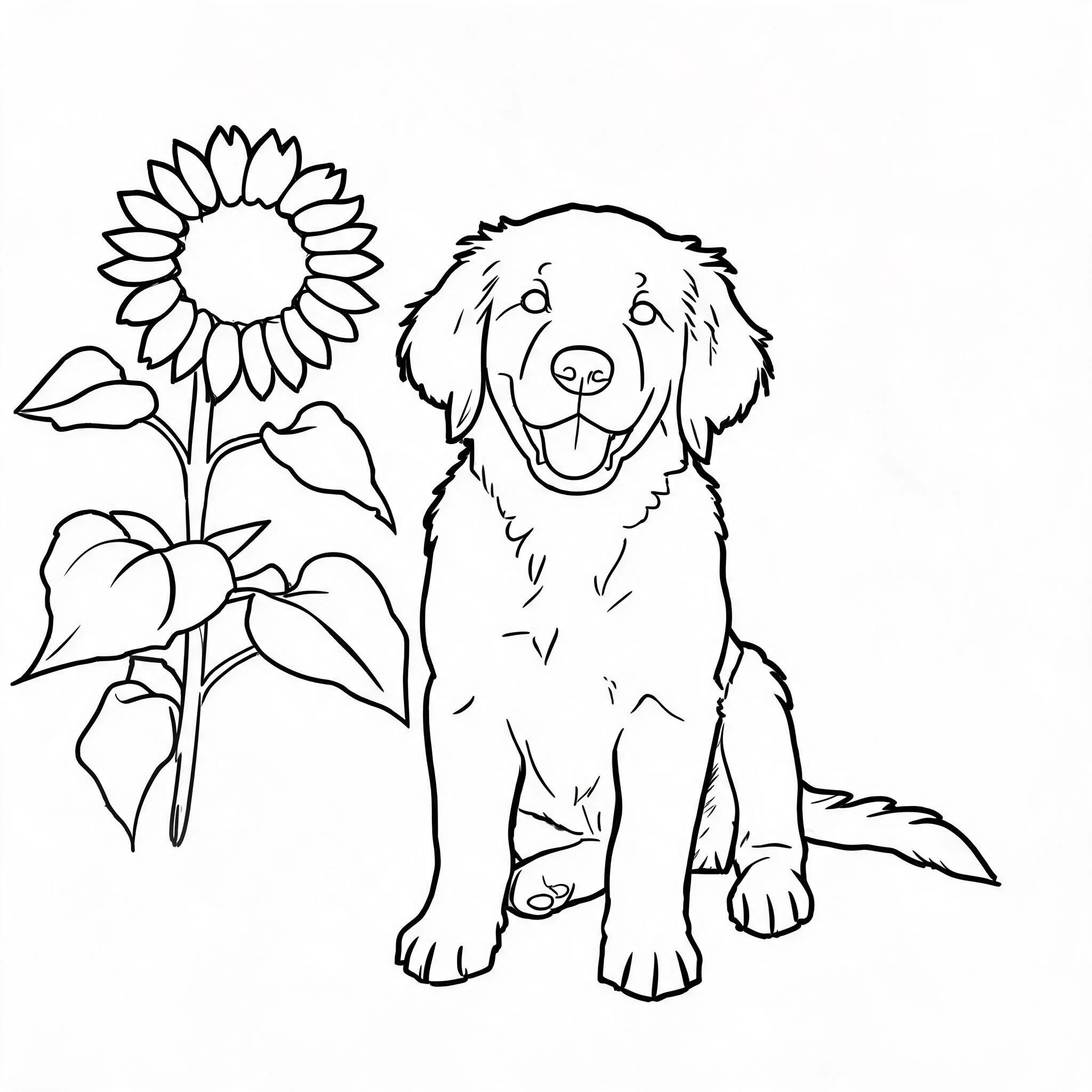
A pet portrait with simpler outlines

A pet portrait with simpler outlines

Keep the puppy and the sunflower; make the background very simple and leave large spaces for a child to color.
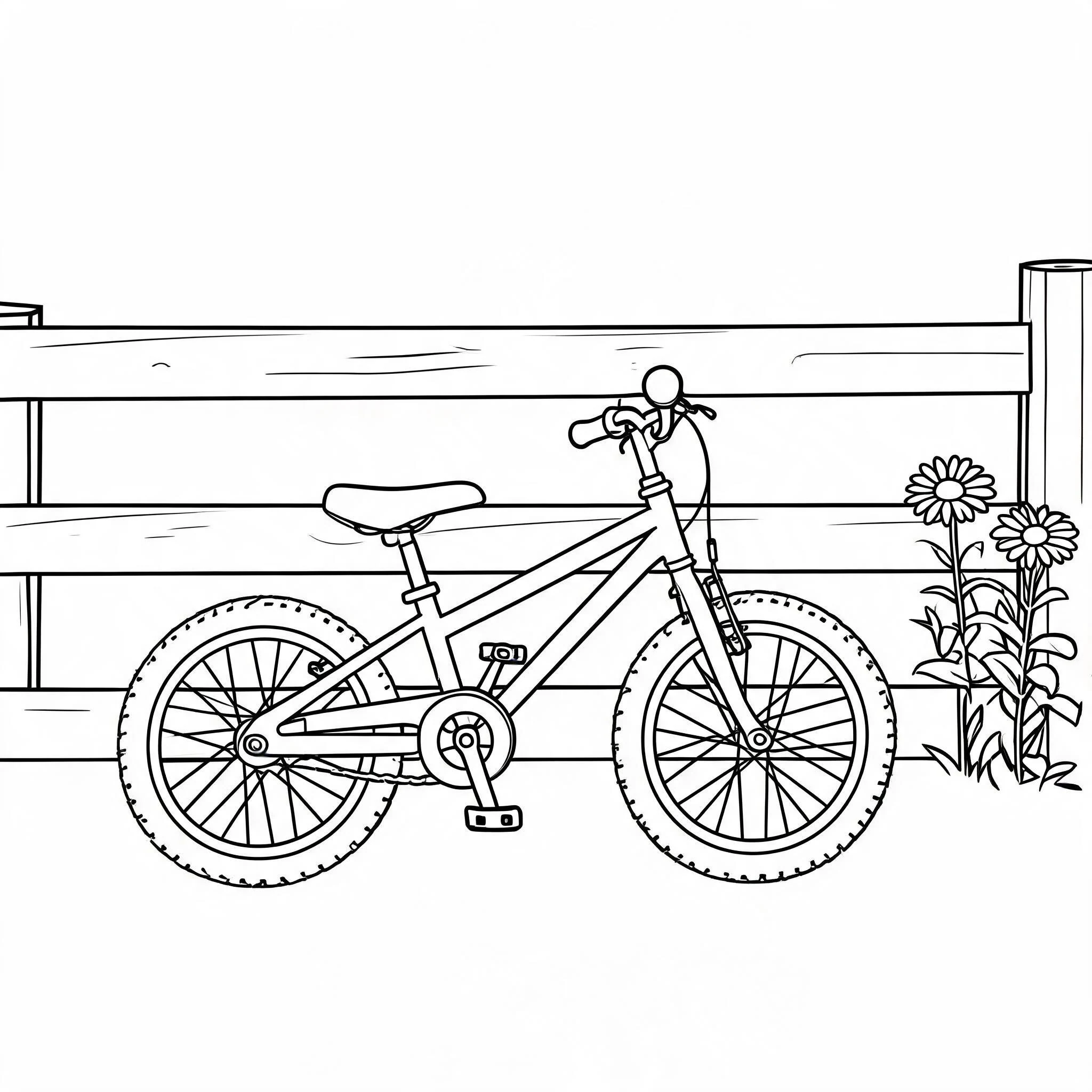
A bicycle with open spaces to color

A bicycle with open spaces to color

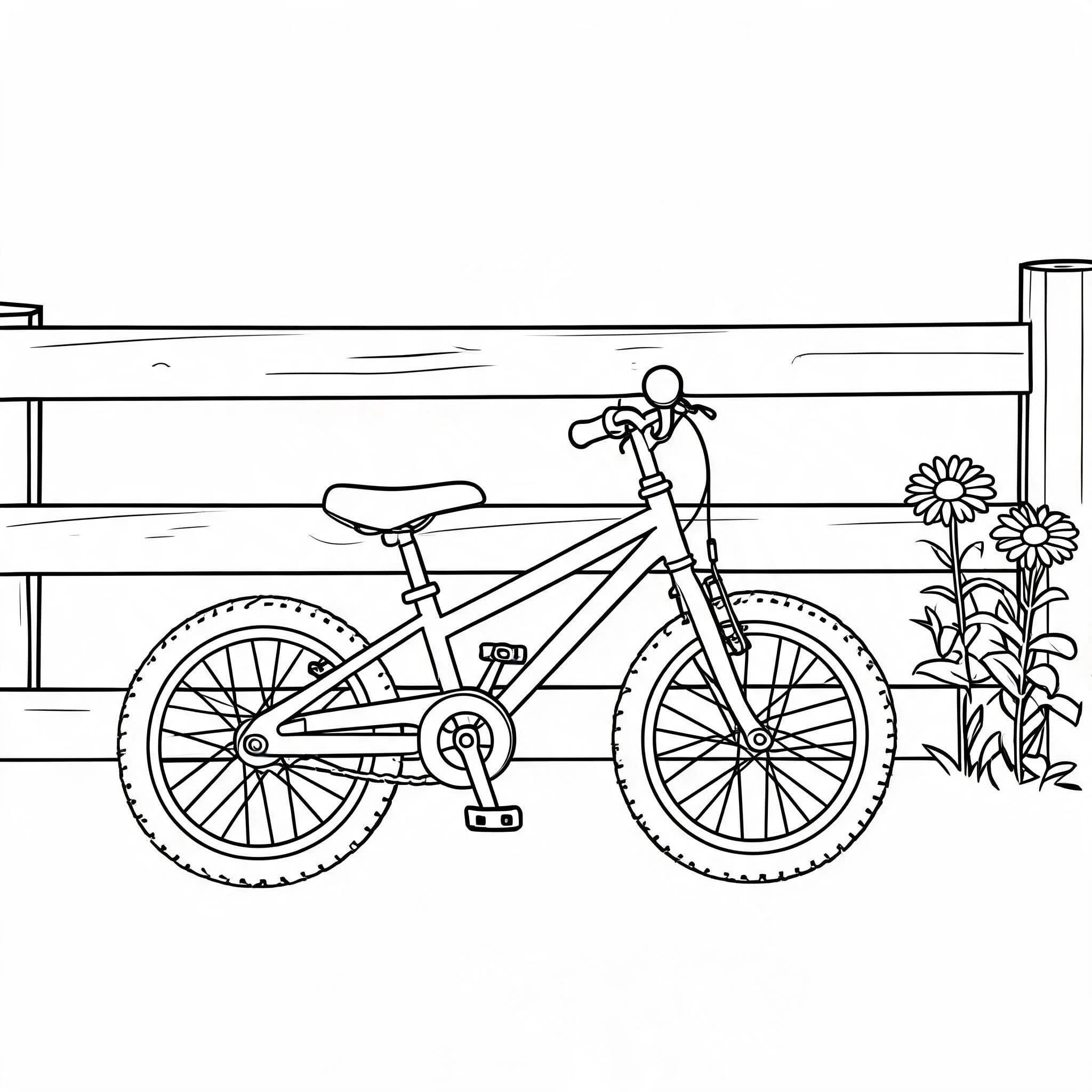
Keep the bicycle, fence, and two flowers. Use simple outlines and broad white spaces for coloring.

FROM YOUR PHOTO

What Changes When You Make a Coloring Page from a Photo?
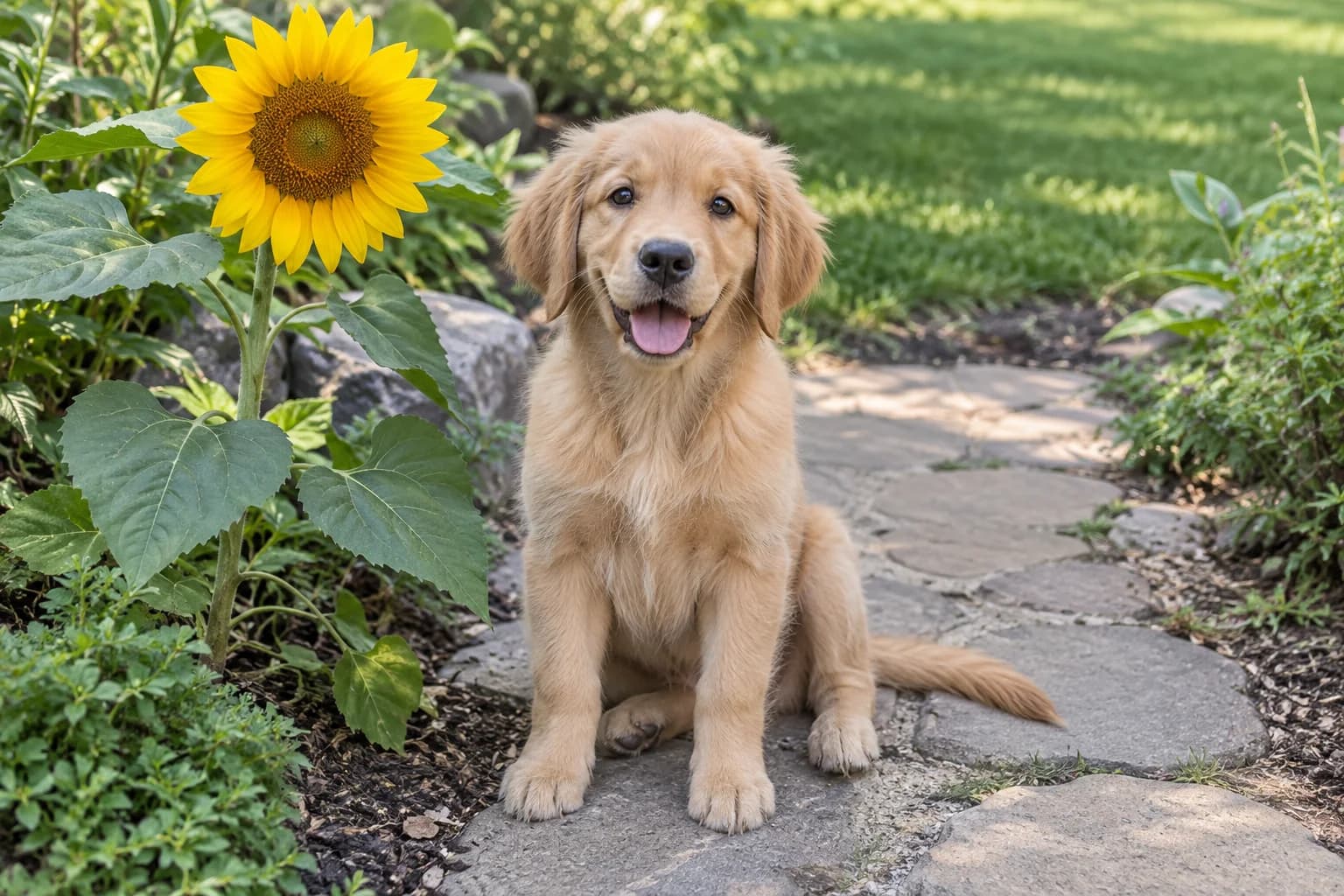
These examples show the source photos beside results generated with this page's model and prompt. They show what the tool can do with two different subjects, not a guarantee for every upload.
Original photo of a golden retriever puppy beside a sunflower
Black-and-white coloring image of the puppy and sunflower generated from the photo

Keep a Pet Recognizable

In our puppy example, the generated image keeps the dog and sunflower while replacing color and texture with black outlines and white spaces. It is a new illustration based on the photo, so check pet markings and other details before using it.
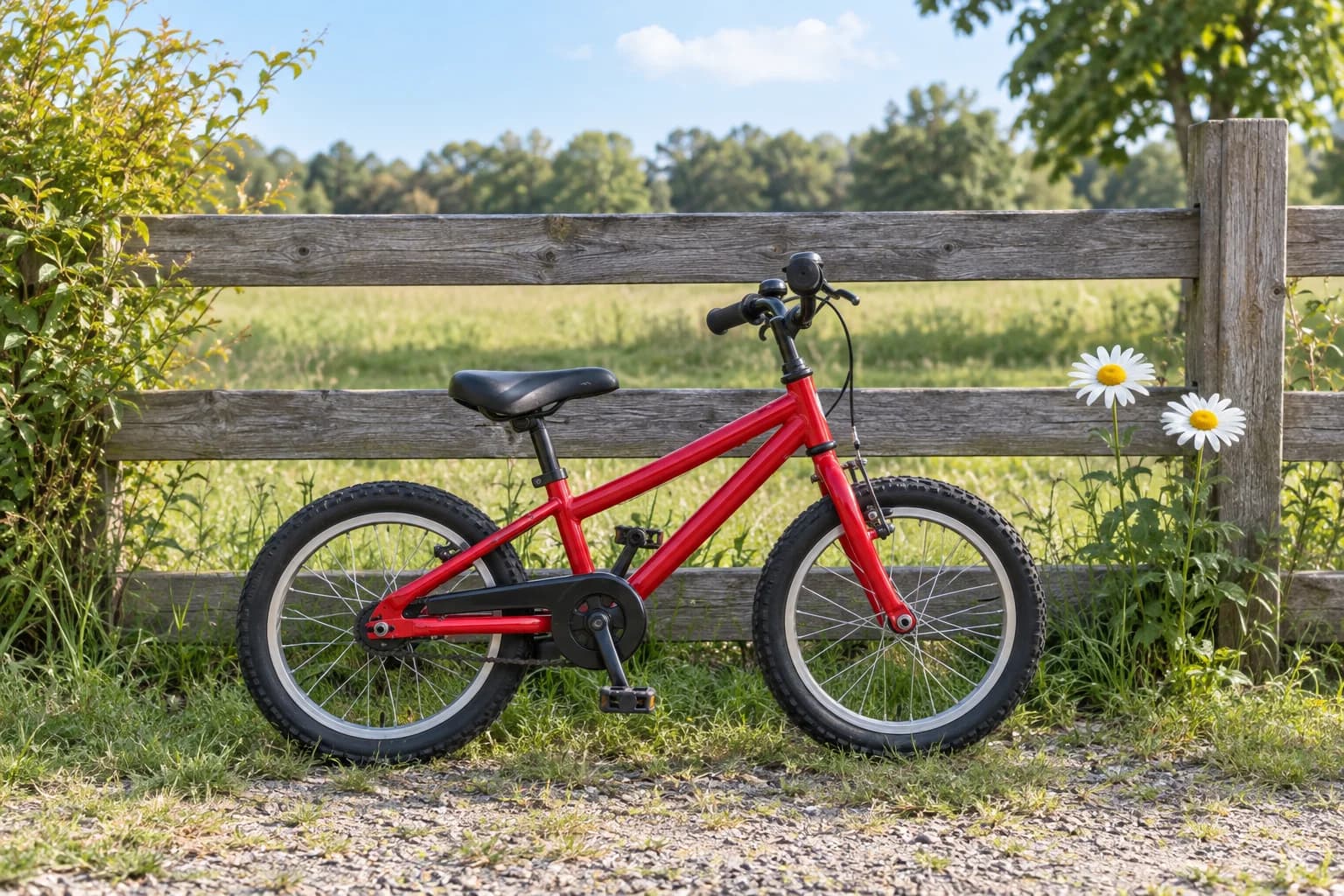
Original photo of a red child’s bicycle beside a fence and flowers
Black-and-white coloring image of the bicycle, fence, and flowers generated from the photo

Guide Which Details Stay

The optional instruction can name the objects you want to keep or request a quieter background. Our bicycle example retained the fence and two flowers, but the wheel spokes still form smaller spaces. For larger coloring areas, start with a closer, simpler photo or try another instruction.
Black-and-white coloring image of the puppy and sunflower generated from the photo

Review the Image You Get

Preview the generated image before downloading it. The generator shows its current credit cost before you submit, and results on the free tier may include a watermark. The download is an image file; this page does not produce a sized PDF or a multi-page coloring book.
HOW IT WORKS

How to Turn a Photo into a Coloring Image

A clear source photo and a short instruction give the model a better starting point. Check the result before coloring or printing it.

1. Choose One Clear Subject

Pick a pet, object, or scene with a visible main subject. Busy backgrounds and tiny subjects can leave too many lines or change important details.

2. Upload One Photo

Add your image in the generator above. This page edits a photo; if you only have a written idea, use a text-to-image tool instead.

3. Describe the Outlines

Optionally ask for fewer background details, larger spaces to color, or specific objects to keep. The prompt guides the model but cannot guarantee exact tracing.

4. Generate and Check

Review the cost shown on the Generate button, inspect the returned image, then download the result you want to use. Check paper size and margins yourself if you plan to print it.

Questions About Photo Coloring Pages

Yes. Upload one pet photo and generate an outline image. Choose a photo where the pet is clearly visible, then check that its markings and pose still look right in the result.
Start with a clear photo with one main subject and a simple background. You can ask for fewer background details in the instructions. Results vary, so review the generated image before using it.
No. The model simplifies the photo and may change small details. Check the result, especially when a person's face, pet markings, or an object's exact shape matters.
No. This page asks for black outlines and open white areas intended for coloring. A pencil sketch can keep shading, texture, and fine detail. If you want that drawing style, use our Photo to Sketch tool instead.
You can download the generated image. It is not a ready-made A4 or US Letter PDF, so check the image, margins, and print settings before using paper. Free-tier results may include a watermark.
The generator shows the current credit cost on its Generate button before you submit. Check that amount and any free-tier watermark notice in the tool.

Explore Related Image Tools

Explore other ways to edit and generate images.
Start with one clear photo

Make a Coloring Image from Your Photo

Upload an image, add any outline instructions, and review the generated result. The current credit cost appears in the generator before you submit.